 grappl
How to use a VPN in China: setup guide
Last updated: 2026-10-16
This takes about five minutes. Every app below is free. Grappl uses premium routes that stay fast in China at peak hours, when shared routes slow down.
- Before you travel
- Which app to use
- Install without an app store
- Step by step with Hiddify
- Check that it works
- Choose a protocol and server
- If something goes wrong
- Other apps
1. Before you travel to China
Install the app and add your subscription link before you travel. Once you are in China, Google Play and GitHub usually don’t load, and the Chinese App Store doesn’t carry these apps.
Already there? Pay and download the app from your account page: on Android, Windows and Mac you can get the installer there. On iPhone and iPad there is no download, so use an Apple ID from another country to open the App Store. How to install it without a store.
Before you fly, tick these off:
- Install the app (links in the table below).
- Add your link and tap connect. Make sure it says “Connected”.
- Save your subscription link and QR code where you can open them offline, for example as a screenshot.
- Write down your account number and keep it private.
- Install a second app from the table as a backup.
- Save this page as a PDF from your browser’s print menu.
2. Which app to use
| Platform | Recommended | Free alternative |
|---|---|---|
| Android | Hiddify (Google Play, or your account page once you have paid) | v2rayNG (GitHub, or your account page once you have paid) |
| iPhone and iPad | Hiddify (App Store, free; not in the Chinese store) | Karing |
| Windows | Hiddify (GitHub, or your account page once you have paid) | v2rayN (choose the sing-box core for Hysteria2; also on your account page) |
| macOS | Hiddify (GitHub, or your account page once you have paid) | v2rayN (also on your account page) or Karing |
| Linux | Hiddify (GitHub) | None |
Shadowrocket is a paid option on iPhone (about 3 USD).
3. Install without an app store
The installers on your account page (available once you have paid) don’t come from an app store, so your system asks you to confirm the install. That is normal. Each file is an unmodified copy of the official release, and your account page shows its SHA-256 so you can check it.
Android
- Open your account page in your phone’s browser, tap the download for Android and wait for it to finish.
- Open the file. If Android says it can’t install apps from this source, tap “Settings” and allow “Install unknown apps” for your browser. The name changes by phone, for example “Unknown sources”.
- If Google Play Protect warns about an app it doesn’t know, tap “More details” and then “Install anyway”. Google shows this for any app that doesn’t come from Play.
- Open the app and continue with the next section.
Windows
- Download the installer from your account page and open it. If it comes as a zip (v2rayN), right-click it, choose “Extract all” and open the program inside.
- If Windows SmartScreen says “Windows protected your PC”, click “More info” and then “Run anyway”.
macOS
- Download the file for your Mac. If you don’t know which one, open the Apple menu and choose “About This Mac”: “Apple M…” means Apple Silicon and “Intel” means Intel.
- Open the .dmg and drag the app into “Applications”.
- The first time, don’t double-click it. Right-click (or Control-click) the app, choose “Open” and then “Open” again. This is how Gatekeeper lets you open an app that isn’t from the App Store. If macOS still blocks it, go to System Settings → Privacy & Security and choose “Open Anyway”.
4. Step by step with Hiddify
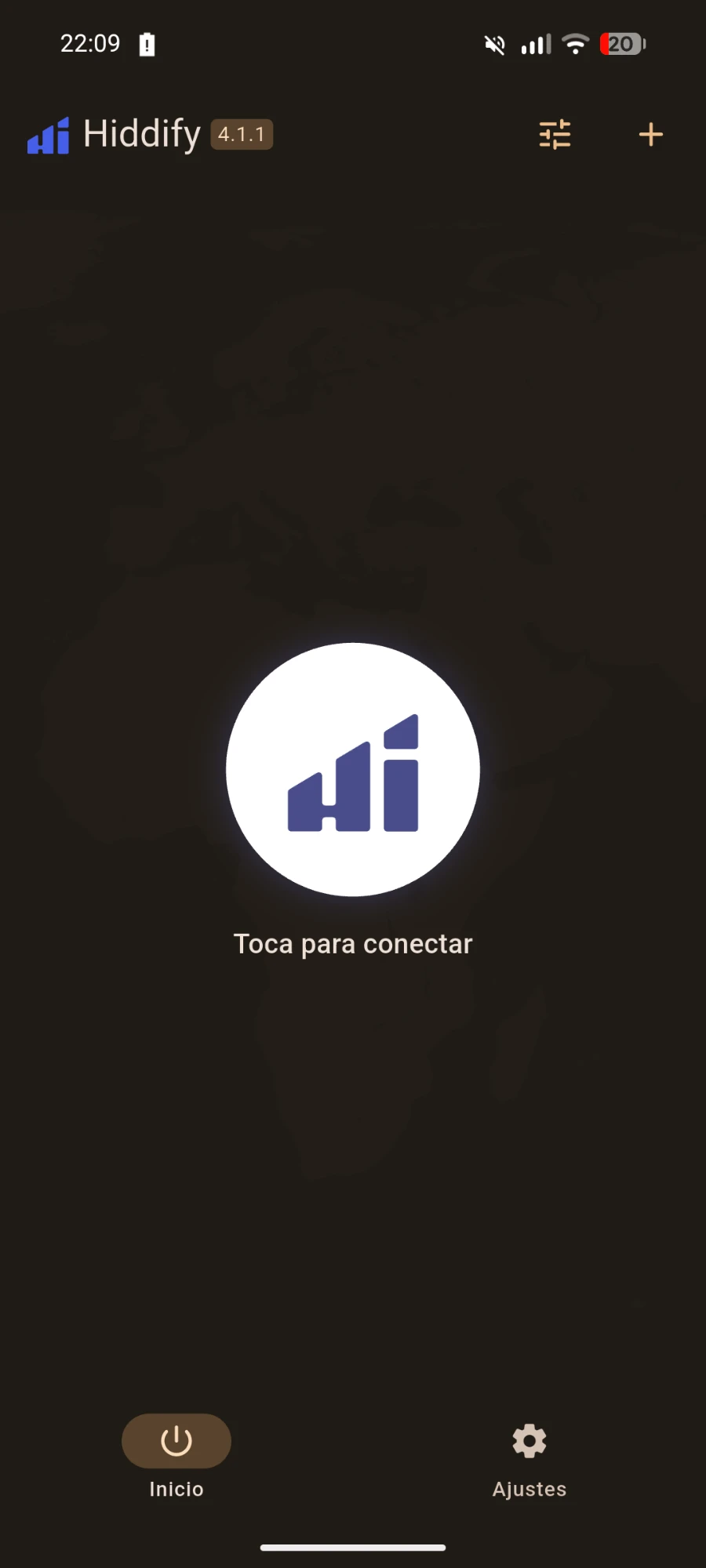
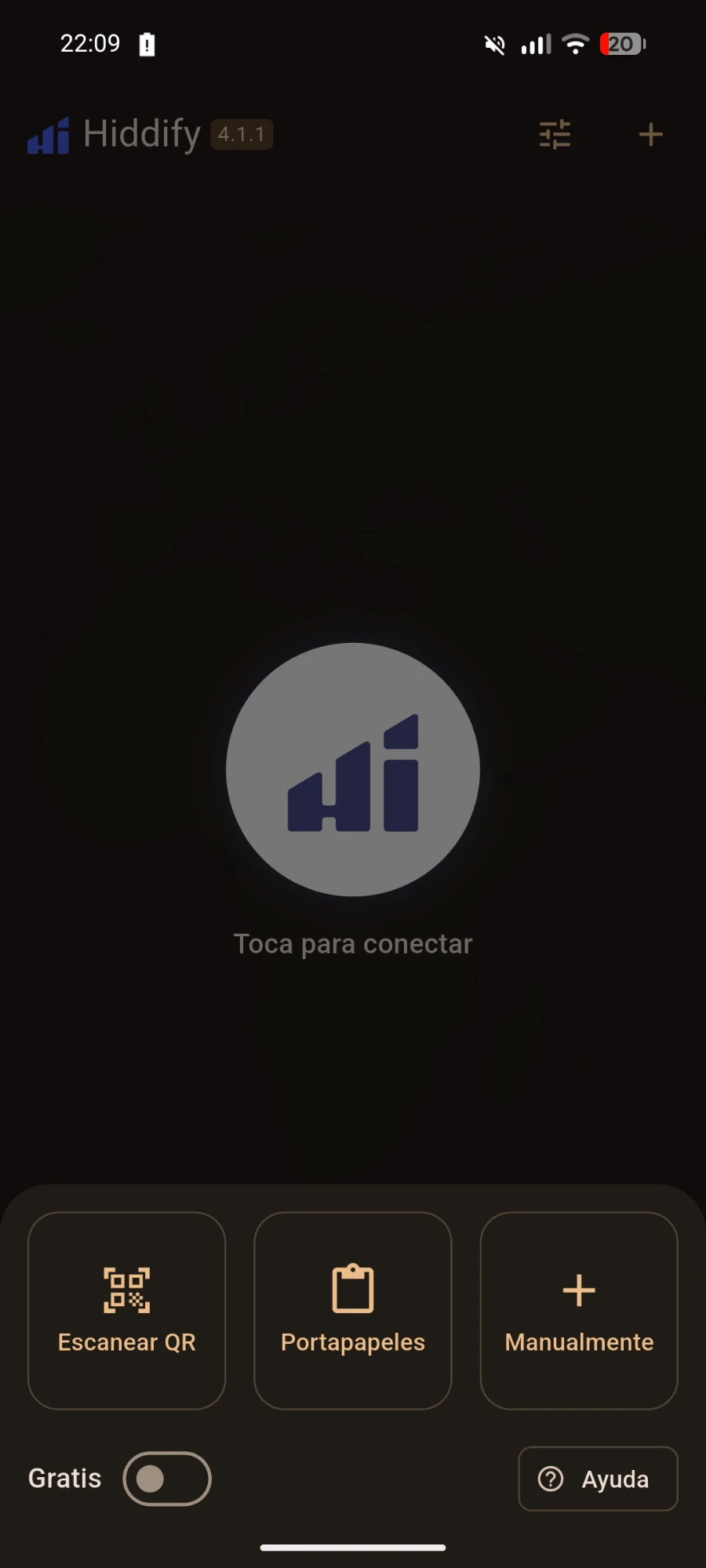
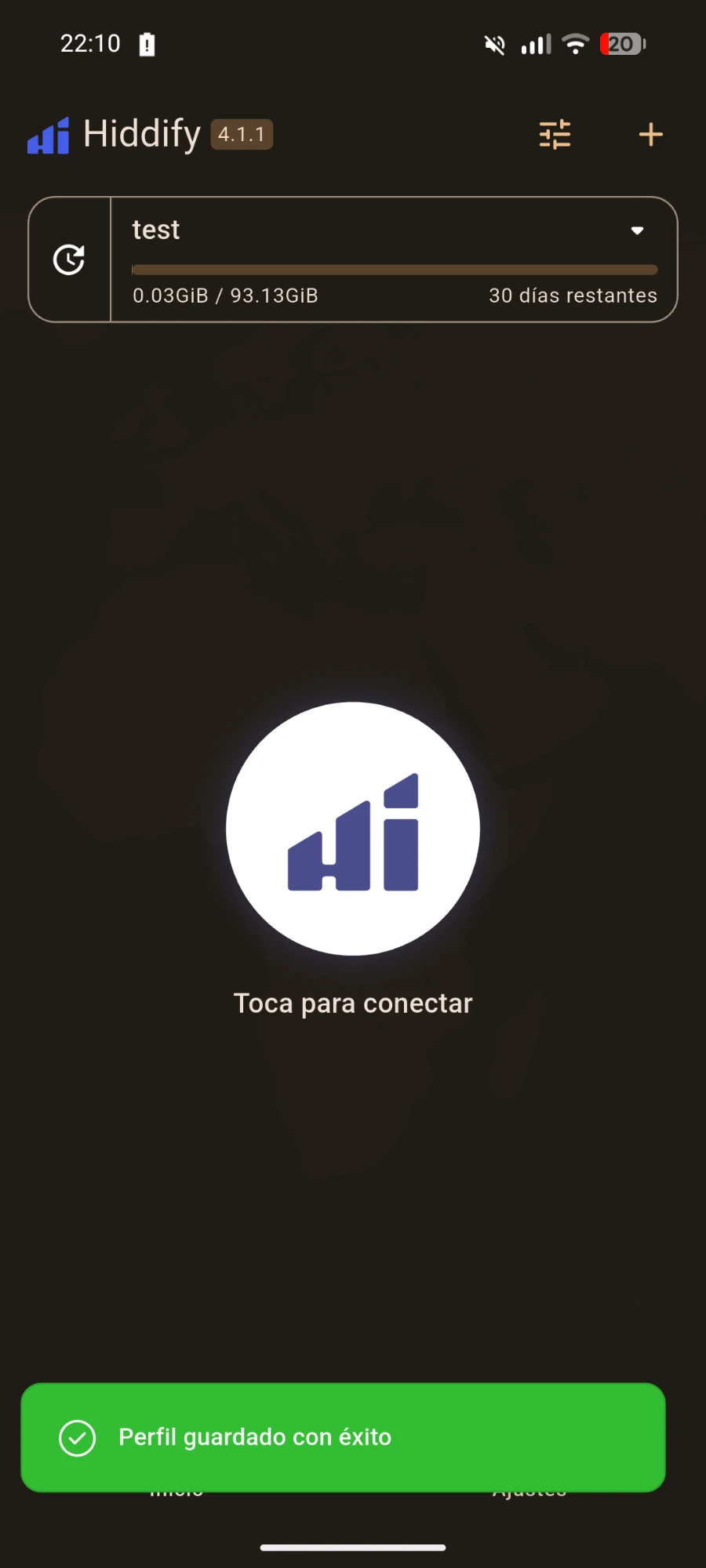
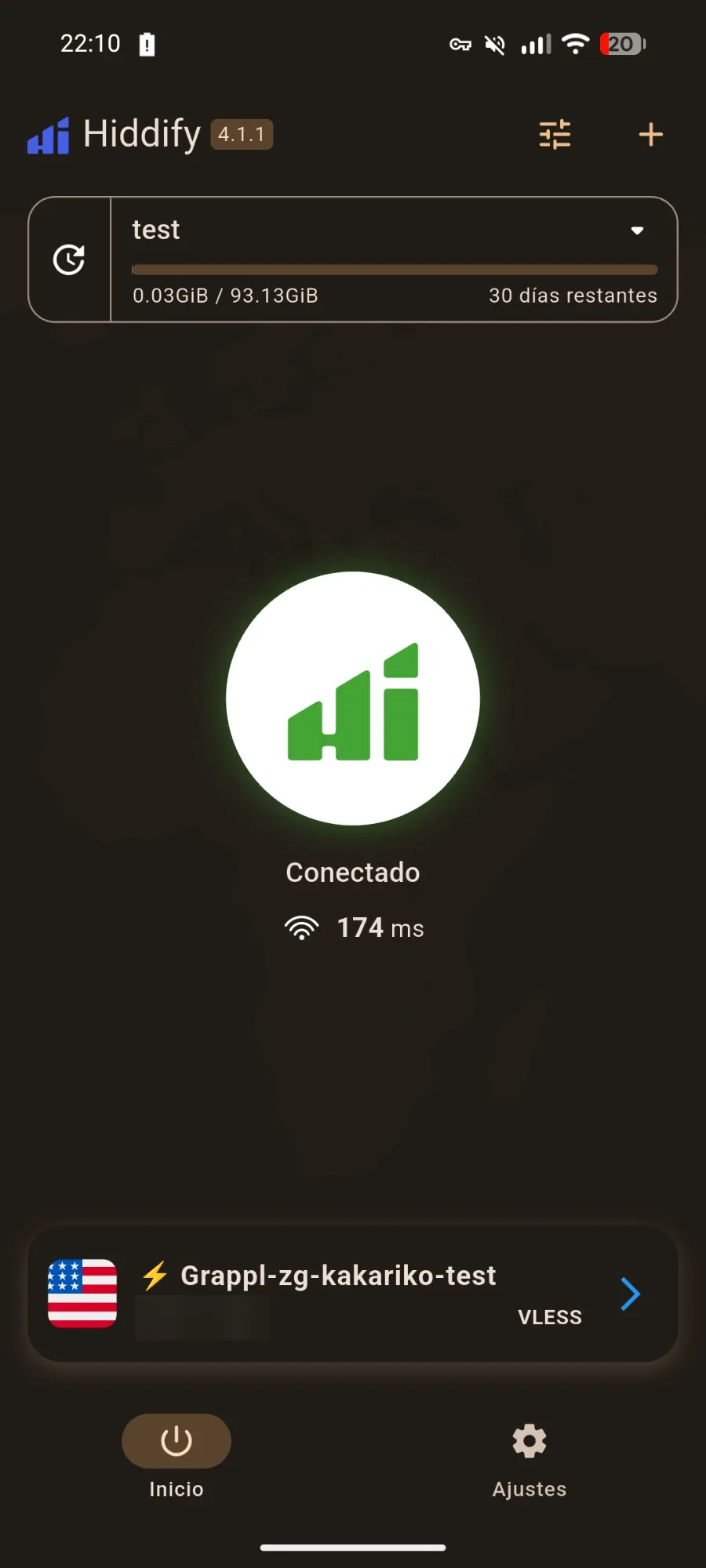
Screenshots of Hiddify on Android, shown in Spanish. The steps are the same on other platforms.
- Open your account page and copy your subscription link. Or keep the QR code on screen.
- In Hiddify, tap “+”.
- Choose “Add from clipboard” (“Portapapeles” if the app is in Spanish), or scan the QR code.
- Select the new profile.
- Tap the connect button.
- Accept the VPN permission your system asks for.
On Android and iPhone, use the “VPN” mode, not “proxy”.
5. Check that it works
When the app says “Connected”, confirm it:
- Open any page that shows your IP address. It should be different from your own.
- Open a site that is blocked without a VPN, such as Google.
- Look at the top of the app: it shows how much data you have used and how many days are left.
6. Choose a protocol and server
Your profile list has one entry for each server and protocol. Names look like Grappl-server-account. Entries that end in -hy2 use Hysteria2. The others use Reality.
Start with Reality. It is the most reliable. Try Hysteria2 if you want more speed.
Reality looks like normal HTTPS and is the most reliable on filtered networks. Hysteria2 uses UDP and is faster on slow networks, but some networks limit UDP.
7. If something goes wrong
It doesn’t connect
- Update the subscription with the refresh button.
- Make sure your phone’s date and time are set to automatic.
- Try another server, or switch between Reality and Hysteria2.
- Check the status page.
It connects but pages don’t load
- If you were on Hysteria2, switch to Reality, and the other way round.
- Try another network: Wi-Fi instead of mobile data, or the opposite.
- Check the app is in “VPN” mode, not “proxy”. Then close it and open it again.
It is slow
- Try Hysteria2, which is faster on slow networks.
- Check that you haven’t used all your data for the month. At the top of the app you can see it.
- Try again at a different time of day.
It disconnects every few minutes
- Update the app to its latest version.
- Allow the app to run in the background and turn off battery saving for it.
Still stuck?
- Write to [email protected] with only the last 4 digits of your account number. Never send the full number.
8. Other apps
v2rayNG (Android) and v2rayN (Windows and Mac) are free alternatives, and once you have paid you can also download them from your account page. In v2rayNG, tap “+” and import the link from the clipboard, or add it as a subscription and update it. In v2rayN, open the subscription settings, add the link and update the subscription. In Karing, add the link as a subscription and update it. They then list the servers like Hiddify does.
Not a customer yet? Try Grappl for 14 days. If it doesn’t work for you, we refund what you haven’t used.
Try it for 14 days